Using Stript with Claude: anonymize documents without leaving the chat
Connect Stript to Claude Desktop and Claude Code. Claude asks Stript for an anonymized version of your file, only anonymized text enters the conversation, and answers are restored locally.
Updated
There are two ways to get a document into an AI chat. You can attach the file, in which case it goes to the AI provider exactly as it is, personal data included, and no tool on your machine can step in between. Or you can give Claude the path instead of the file: Claude asks Stript for an anonymized version, Stript processes the document locally, and only the anonymized text enters the conversation. This guide shows how to set the second way up.
What the integration does
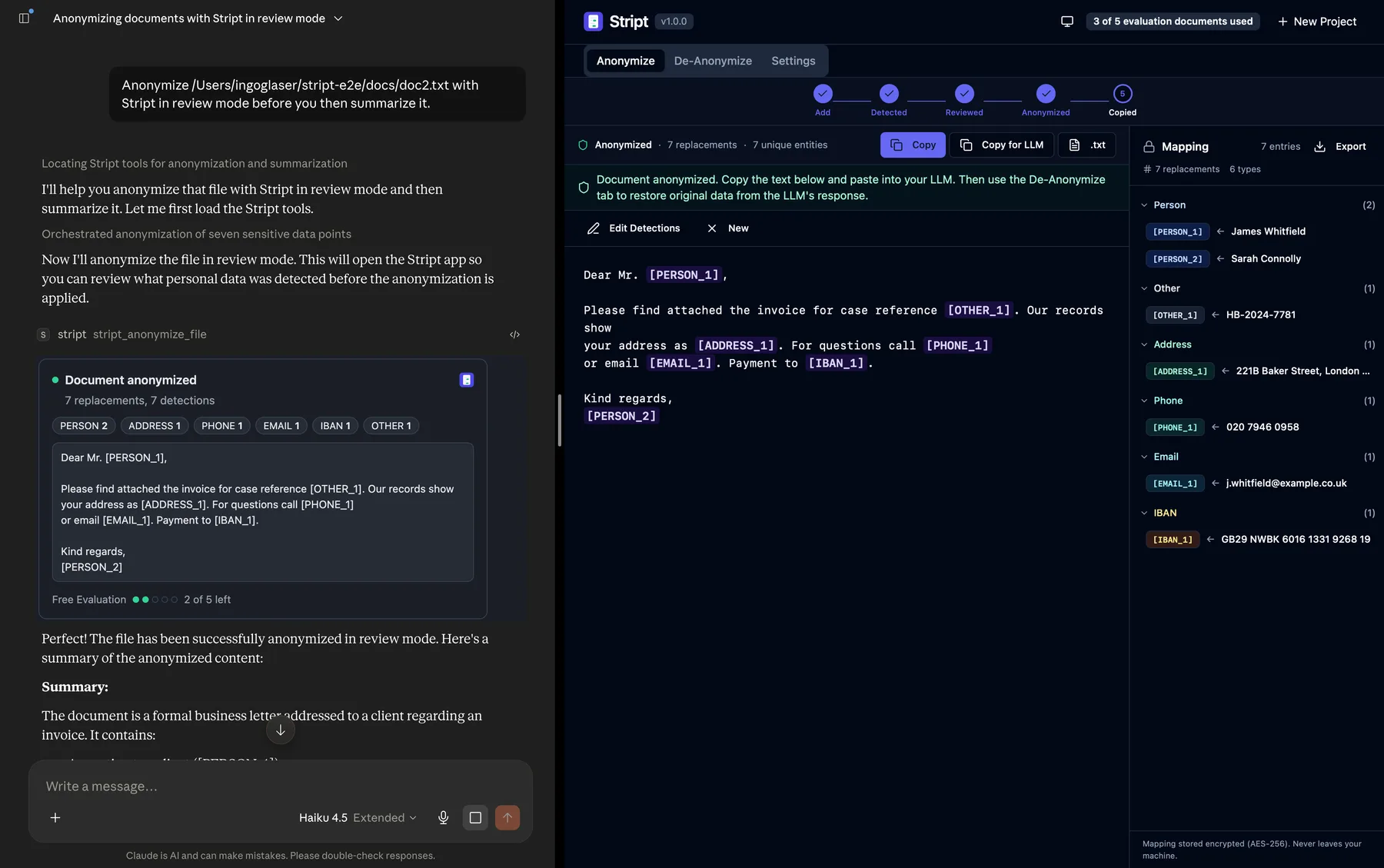
Stript connects to Claude through the Model Context Protocol (MCP), the standard interface that lets Claude use local tools. Once connected, you can ask Claude things like “summarize the contract in ~/Documents/lease.pdf” and Claude will hand the file to Stript, receive placeholders like [PERSON_1] and [IBAN_1] instead of real data, and work with those. When you want Claude’s answer with the real data back in place, Stript restores it on your machine: the restored text is written to your clipboard or a local file, never into the chat. The mapping between placeholders and originals stays encrypted on your device and is never exposed to Claude.
The connection itself is local only. It runs over your own machine’s loopback interface, works only while the Stript app is running with the integration enabled, and uses a token that changes on every app launch and is revoked the moment you turn the toggle off.
![A Claude chat showing the Stript result card with anonymized placeholders such as [PERSON_1] and [IBAN_1], and a summary written below](/guides/claude/chat-anonymized-result.webp)
Step 1: enable AI integrations in Stript
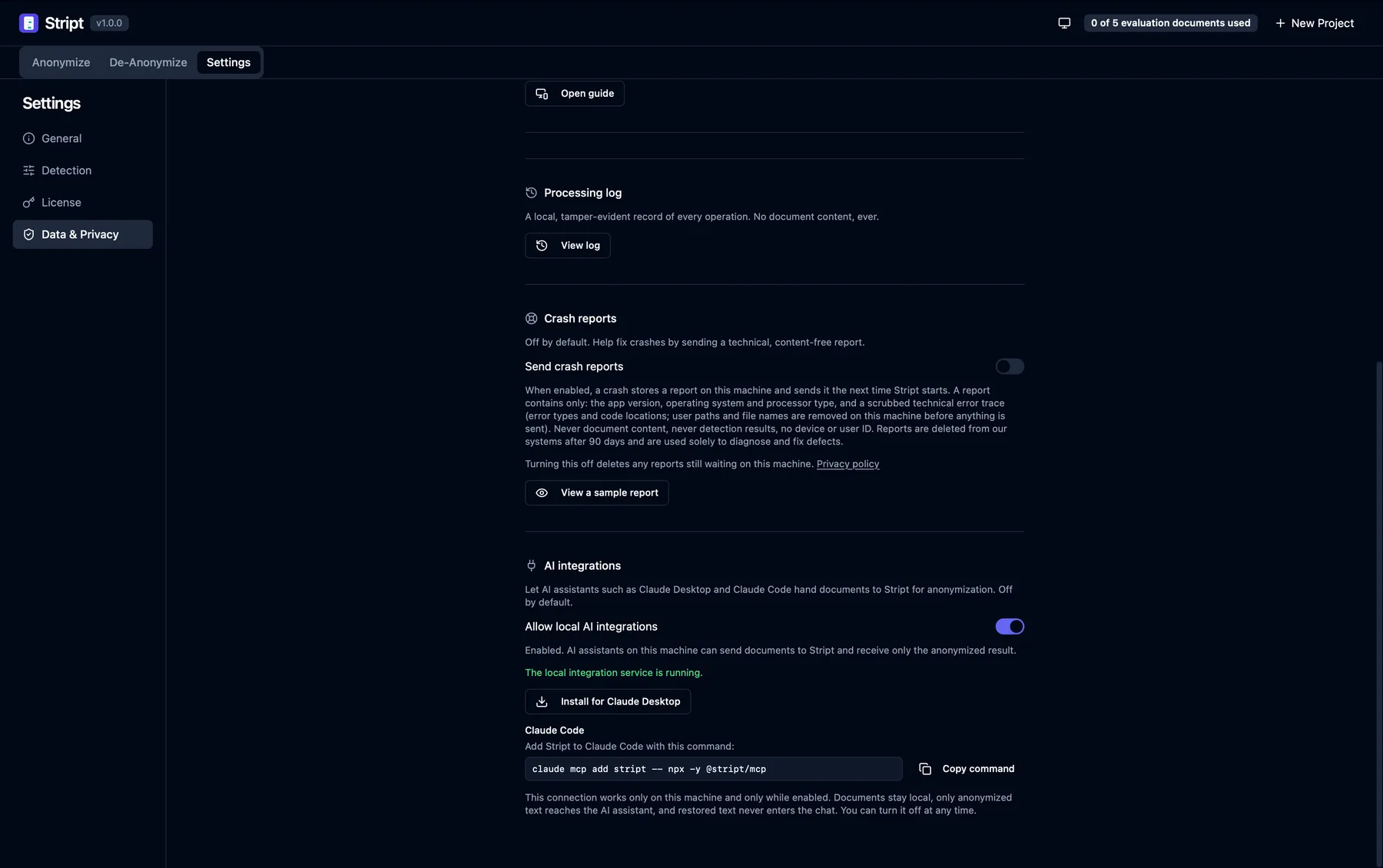
Open Stript, go to Settings, Data & Privacy, and turn on Allow local AI integrations. The toggle is off by default. While it is off, no AI assistant can connect to Stript at all.
Step 2a: install for Claude Desktop
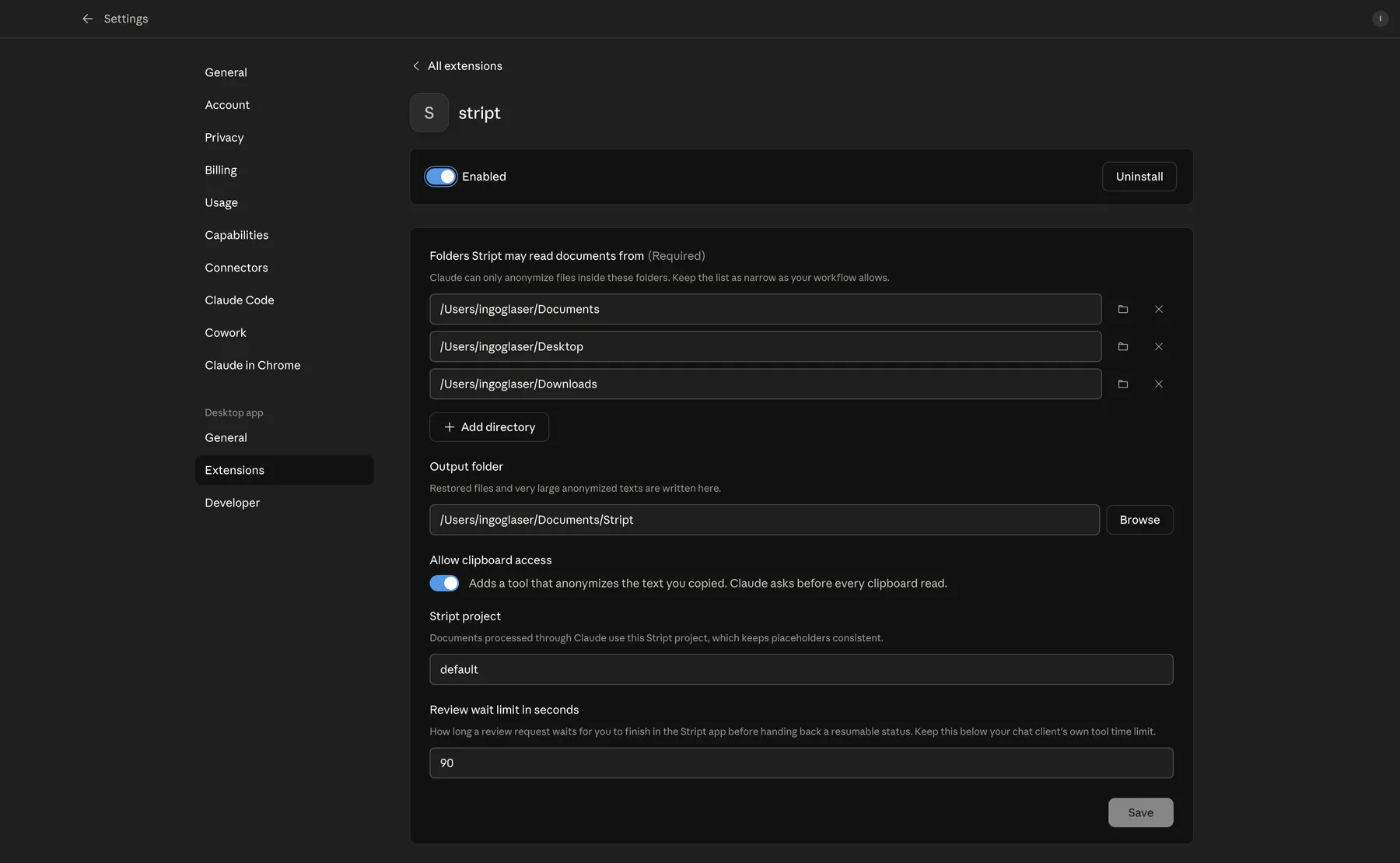
In the same Settings section, click Install for Claude Desktop. Stript hands Claude Desktop a ready-made extension. Claude Desktop asks you to confirm and lets you choose which folders Stript may read documents from. No folder is readable until you add one, so start with the single folder you work in. After changing that list, restart Claude Desktop so every part of it picks up the new folders.
You can also choose an output folder for restored files, decide whether Claude may ask Stript to anonymize your clipboard (off by default, and Claude asks before every clipboard read), and pick the Stript project used for these documents so placeholders stay consistent.
If you prefer a manual install, the same extension is available as a direct download: Stript.mcpb. Open the file with Claude Desktop and you land in the same confirmation dialog. On Windows, if Claude Desktop came from the Microsoft Store, the button opens a “choose an app” dialog instead: close it and install from Claude Desktop itself under Settings, Extensions, Advanced settings, Install Extension, choosing the file Stript.mcpb from the Stript program folder.
Step 2b: install for Claude Code
For the command-line version of Claude, run:
claude mcp add stript -- npx -y @stript/mcpThe same command is shown, with a copy button, in Stript’s Settings next to the Claude Desktop install button.
The two modes: auto and review
- Auto mode: Claude asks Stript to anonymize the document, and Stript applies your saved detection settings from the app, the same PII types and the same confidence threshold you use there. The anonymized text comes back into the chat directly. Good for routine documents.
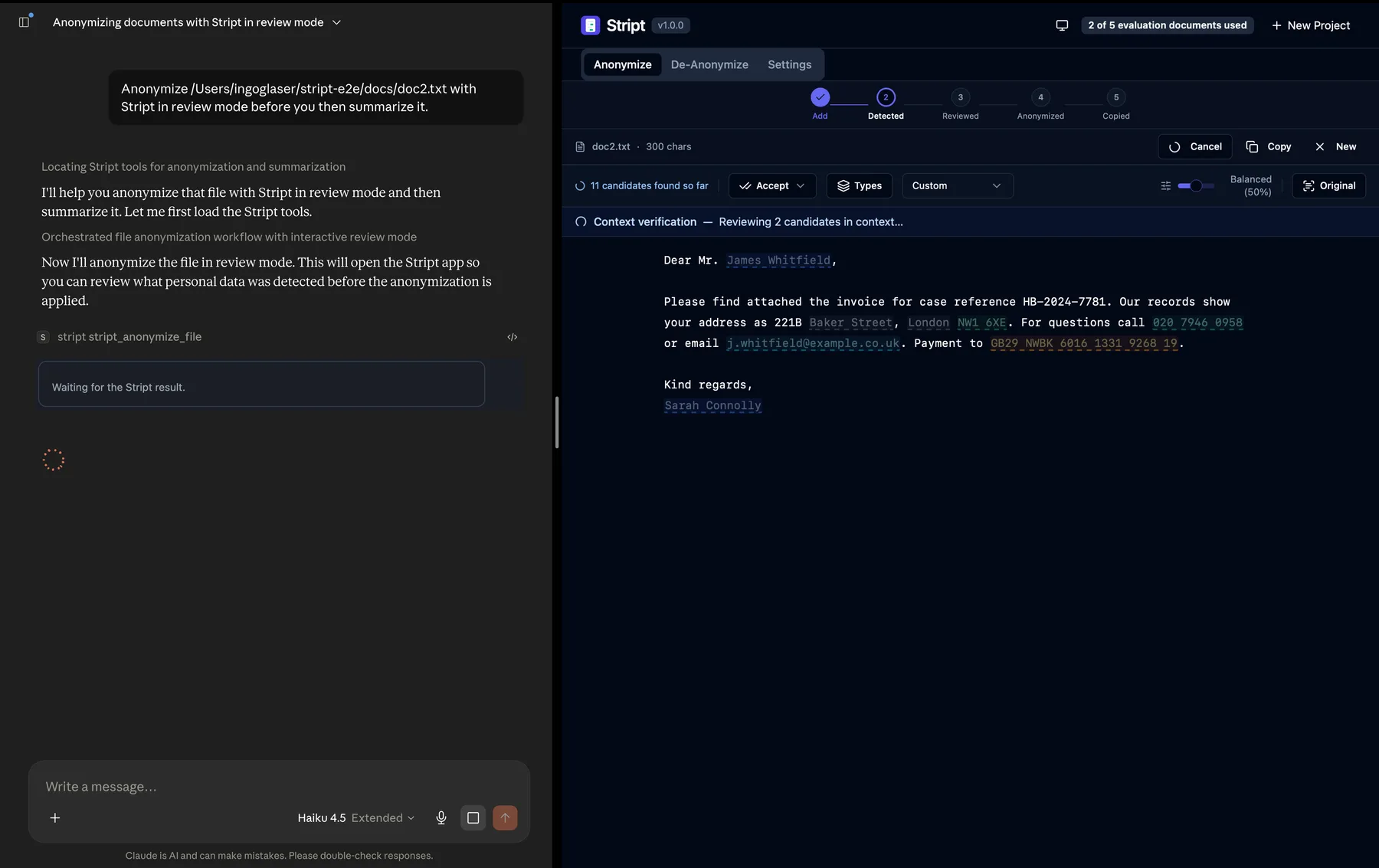
- Review mode: Stript opens the document in the app first. You see every detection highlighted in context, adjust whatever you want, and click Anonymize when you are satisfied. That click is the approval: only then does the anonymized text reach the chat. If you delete the document instead, nothing is sent. Good for documents where you want to look before anything leaves your review.
In both modes, the answer flow is the same: ask Claude to restore the result, and Stript writes the restored text to your clipboard or a file in your output folder. Restored content never appears inside the conversation.
The privacy model in one table
| Enters the chat (and reaches the AI provider) | Stays on your machine | |
|---|---|---|
| Your document | Never as an attachment through Stript, only its anonymized text | The original file, untouched |
| Detection and review | The anonymized result only | All detection, all review, all processing |
| The mapping | Never | Encrypted on your device |
| Restored answers | Never | Clipboard or a local file in your output folder |
One thing Stript cannot do, and no local tool can: if you attach a file to the chat directly, it goes to the AI provider before Stript ever sees it. The integration works because you give Claude the path, not the file.
The Free Evaluation
Documents processed through Claude count toward the same Free Evaluation as documents opened in the app: 5 documents in total, through exactly the same metering, with nothing separate to track. If the allowance is used up, Claude relays the same honest notice the app shows, and Pro removes the cap. Activating the Free Evaluation (the one-time email verification) happens in the Stript app itself, not in the chat.
For Claude Code: protecting whole folders
If you use Claude Code on a machine with sensitive documents, there is an optional companion: the Stript Privacy Guard, a Claude Code plugin that blocks Claude Code from reading files in folders you mark as protected and points it to request an anonymized version through Stript instead. That turns “give Claude the path, not the file” from a habit into a rule.
It works through Claude Code’s hook mechanism: before Claude Code reads a file, the guard checks whether the file lives inside a protected folder and denies the read if it does, with a message that tells Claude to ask Stript for an anonymized version. You mark folders as protected with the environment variable STRIPT_PROTECTED_DIRS or a small config file at ~/.stript/protected-dirs.json, and Stript’s output folder stays readable so Claude can work with the anonymized files. One honest limitation: the guard covers Claude Code’s regular file reading tools, not arbitrary shell commands, so treat it as a strong default rather than an absolute barrier.
Until the plugin is listed in a Claude Code plugin marketplace (the listing is coming), you load it from a local copy of the plugin directory:
claude --plugin-dir /path/to/stript-privacy-guardThis enforcement exists only in Claude Code, because only Claude Code lets a plugin deny a tool call before it runs. Claude Desktop has no comparable mechanism. There, the rule stays a habit: reference files by path instead of attaching them.
FAQ
Can Stript catch files I attach to the chat directly? No. An attachment is uploaded by the chat app straight to the AI provider, and no local tool can intercept it. Stript protects the path-based workflow: you reference the file, and Claude receives only the anonymized version. If a document is sensitive, do not attach it, reference it.
Does the AI provider see my original document? No. When Claude works with a document through Stript, only the anonymized text enters the conversation. The original file, the detection process, and the mapping between placeholders and real data all stay on your machine.
What about ChatGPT? Currently the integration supports Claude Desktop and Claude Code. ChatGPT only supports remote integration servers, which conflicts with Stript’s local-first design: your documents would have to transit a server. A self-hosted variant that closes this gap is on the roadmap.
Does this open my machine to the network? No. The connection is loopback-only on your own machine, opt-in, off by default, and gated by a token that changes on every launch. Turning the toggle off disconnects everything immediately. How to verify Stript’s network behavior yourself.